flowchart TD
%% User / Client
subgraph UserClient["User / Client"]
U["User"]
App["Application / UI"]
end
U -->|ask question / prompt| App
App -->|query| Q["Query Processor"]
%% Online retrieval + generation
subgraph Online["Online: Retrieval & Generation"]
direction TB
Q --> QE["Query Encoder / Embedding Model"]
Q -->|optional textual search| BM25["BM25 / Lexical Search"]
QE -->|query vector| VectorDB["Vector DB"]
BM25 --> Hybrid["Hybrid Retriever (bm25 + dense)"]
VectorDB --> Hybrid
Hybrid --> TopK["Top-K Candidates"]
TopK --> Reranker["Cross-Encoder Reranker"]
Reranker --> ContextAssembler["Context Assembler\n(filter, dedupe, length budget)"]
ContextAssembler --> PromptBuilder["Prompt Builder / Template"]
PromptBuilder --> LLM["LLM (Reader / Generator)"]
LLM -->|answer| AppResponse["Formatted Response"]
AppResponse --> App
end
%% Offline ingestion & indexing
subgraph Offline["Offline: Ingestion & Indexing"]
direction TB
Sources["Data Sources"] --> Chunker["Chunker & Preprocessor\n(clean, OCR, lang-detect)"]
Chunker --> EmbeddingModel["Embedding Model\n(SBERT, text-embedding-3)"]
EmbeddingModel --> VectorDB
Chunker --> MetadataStore["(Metadata Store / DB)"]
MetadataStore --> VectorDB
Chunker --> Indexer["Indexing Scheduler & Updater"]
Indexer --> VectorDB
end
%% Supporting infra
subgraph Support["Supporting Services"]
direction TB
Cache["Result & Embedding Cache"]
Auth["Auth (Rate-limits, RBAC)"]
Monitoring["Monitoring (Logging, Metrics, Tracing)"]
Feedback["User Feedback / Clicks"]
Tools["External Tools / APIs"]
end
%% Connections to supporting infra
TopK --> Cache
Cache --> ContextAssembler
App --> Feedback
Feedback --> Indexer
LLM --> Tools
App --> Auth
Monitoring -.-> App
Monitoring -.-> LLM
Monitoring -.-> VectorDB
終究要有Markdown何不一開始就Quarto?
What is Quarto?
 (唸”闊拓”) is an open-source (MIT license) scientific and technical publishing system built on Pandoc via extended markdown format (.qmd) files. It allows you to create dynamic documents, reports, presentations, and websites using a single authoring framework. Quarto supports multiple programming languages, including R, Python, and Julia, making it a versatile tool for data analysis and visualization.
Official website: quarto.org
Github repo: github.com/quarto-dev/

Why Use Quarto?
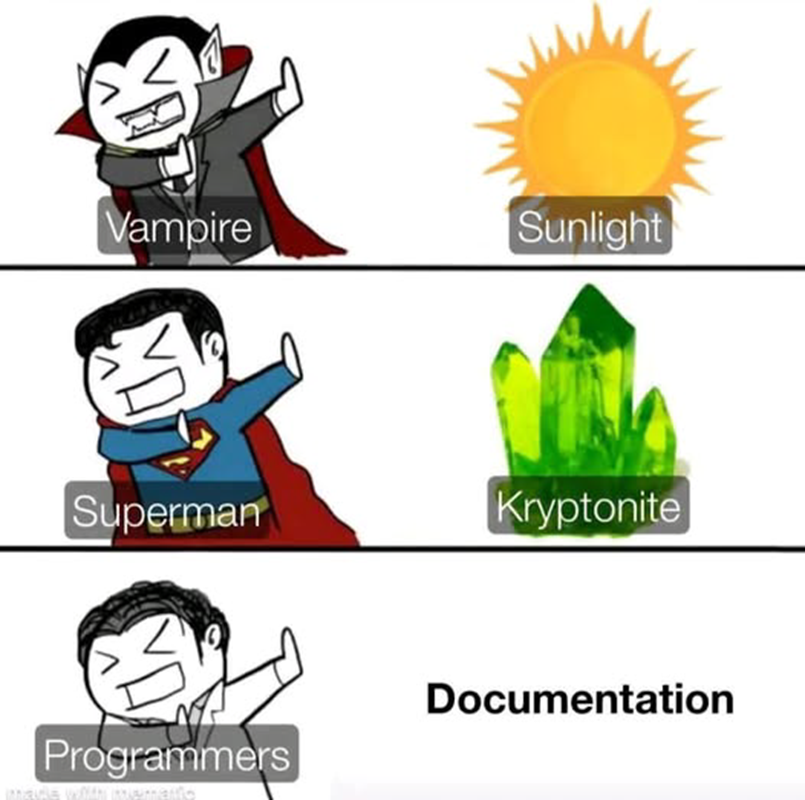
身為碼農,最討厭的就是寫文件,寫一堆各式各樣格式的文件,還有些檔案格式:
- 無法有效版控/比對檔案。
- 表達某些內容種類
(source code/execution result)
不友善得花時間螢幕截圖/手工兜。
整個就是麻煩事。
Quarto 讓寫文件內容統一於 Quarto 的 Markdown 格式(.qmd)檔案,再
一份原始文件內容多種格式輸出(HTML/PDF/Word/PowerPoint/…),減少寫文件的麻煩事。
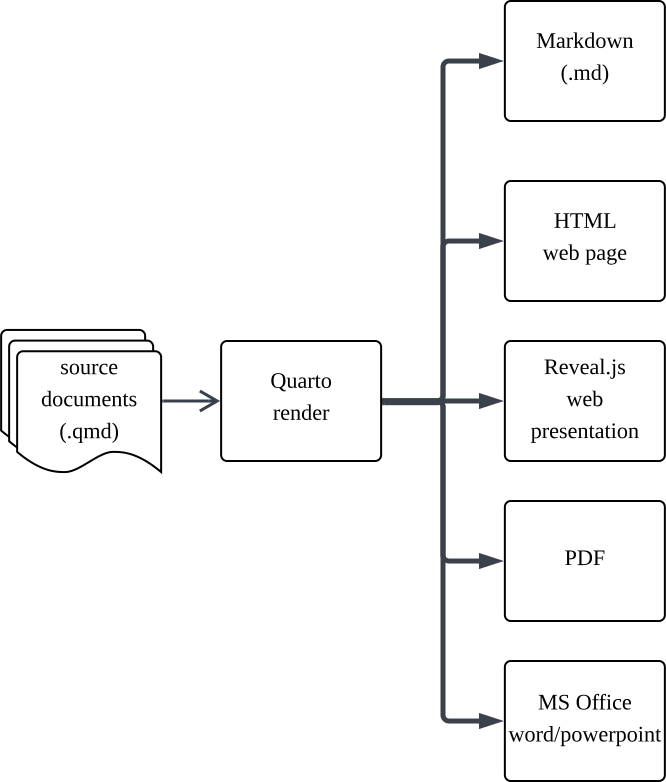
類似跨平台開發框架/遊戲引擎,寫一次原始碼,編譯成多平台的執行檔。
VSCode & Quarto Extension
VSCode:Visual Studio Code (VSCode) 是一個免費跨平台的程式碼編輯器,支援多種程式語言和擴充套件,適合用來撰寫有多種程式碼技術組成的專案/文件。
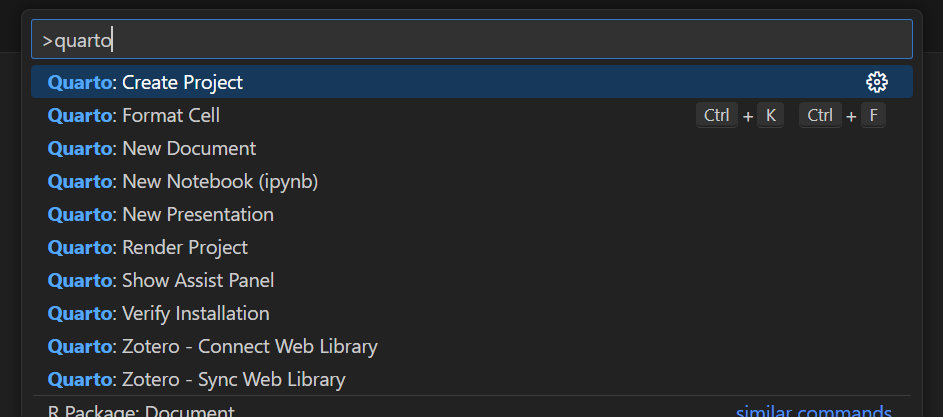
Visual Studio Code Quarto 擴充套件提供 Quarto 專案建立、.qmd 文件語法高亮呈現預覽結果、編輯 .ipynb 文件 Markdown Cell 介面等功能(詳細功能請參閱官方文件):
![]()
此擴充套件會呼叫 Quarto CLI 來進行文件的渲染,因此需安裝 Quarto CLI 才能正常運作。
使用 Quarto 撰寫文件
上述的工具安裝完成後,當在 VSCode 中開啟並編輯 .qmd 文件內容時,就可以 Windows 按 Ctrl+Shift+K, MacOS 按 Command(⌘)+Shift+K顯示文件的渲染結果。
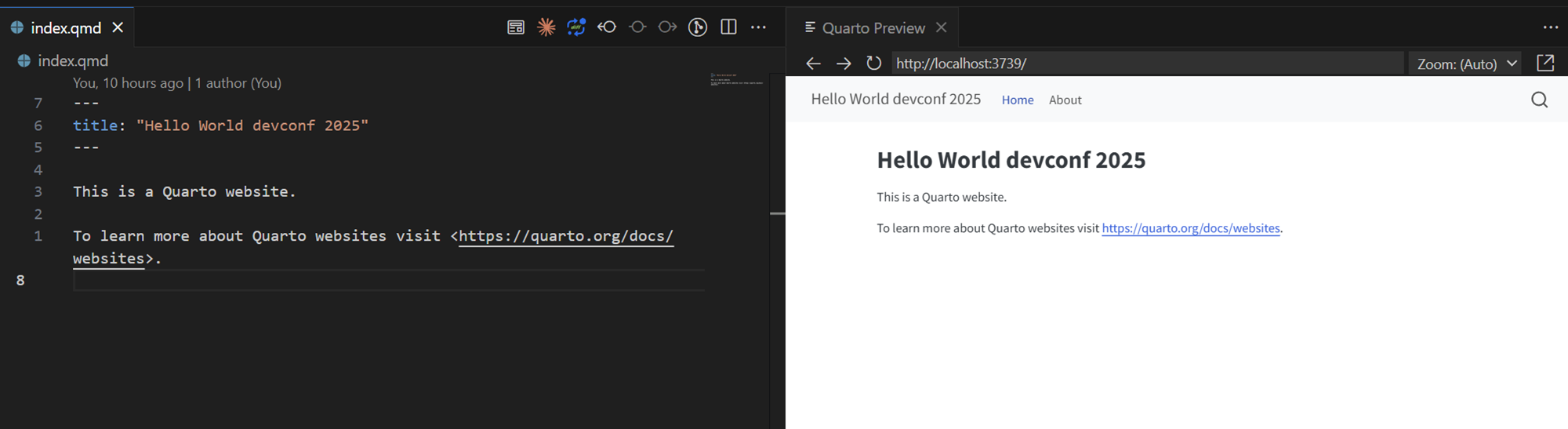
這其實就是用 Quarto CLI 的 quarto render 指令來渲染文件內容,並在 VSCode 開啟右分頁顯示結果。
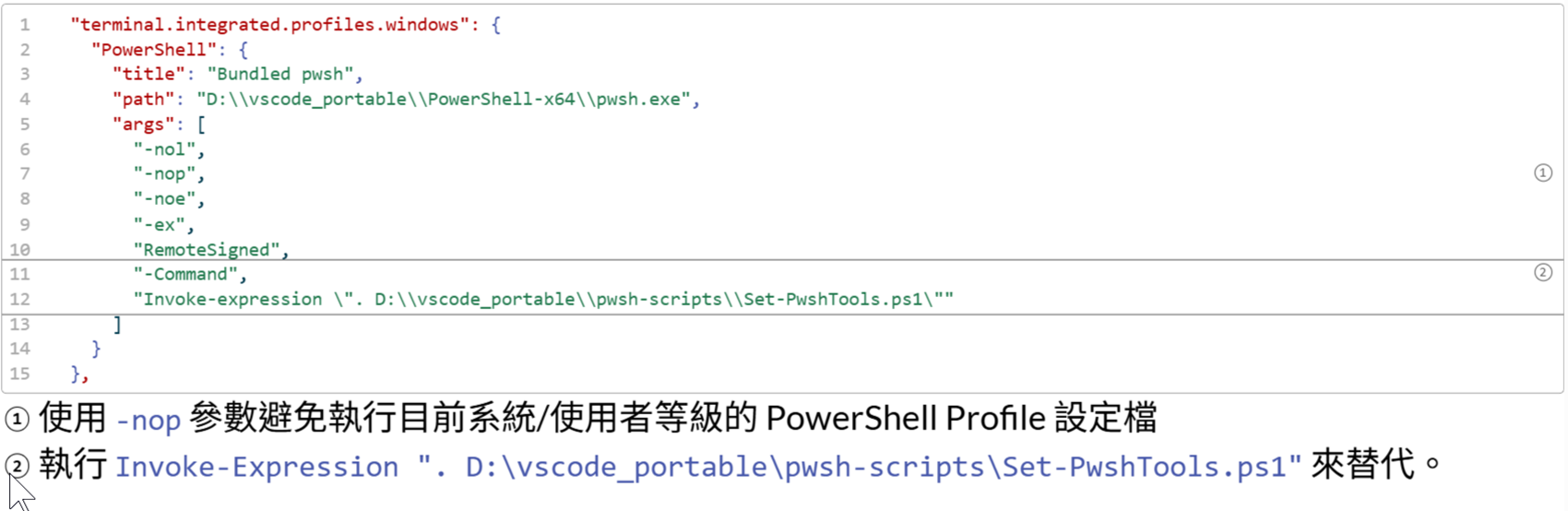
程式碼區塊的內容後面加上 空白字元+該語言使用的單行註解語法+空白字元+<號碼> 為該行程式碼加上註解標示(Code Annotation),例如:
.qmd程式碼區塊:
```json
    "terminal.integrated.profiles.windows": {
    "PowerShell": {
        "title": "Bundled pwsh",
        "path": "D:\\vscode_portable\\PowerShell-x64\\pwsh.exe",
        "args": [
        "-nol",
        "-nop",                                                                         // <1>
        "-noe",
        "-ex",
        "RemoteSigned",
        "-Command",                                                                     // <2>
        "Invoke-expression \". D:\\vscode_portable\\pwsh-scripts\\Set-PwshTools.ps1\""  // <2>
        ]
    }
    },
1. 使用 `-nop` 參數避免執行目前系統/使用者等級的 PowerShell Profile 設定檔
2. 執行 `Invoke-Expression ". D:\vscode_portable\pwsh-scripts\Set-PwshTools.ps1"` 來替代。
```
顯示效果:
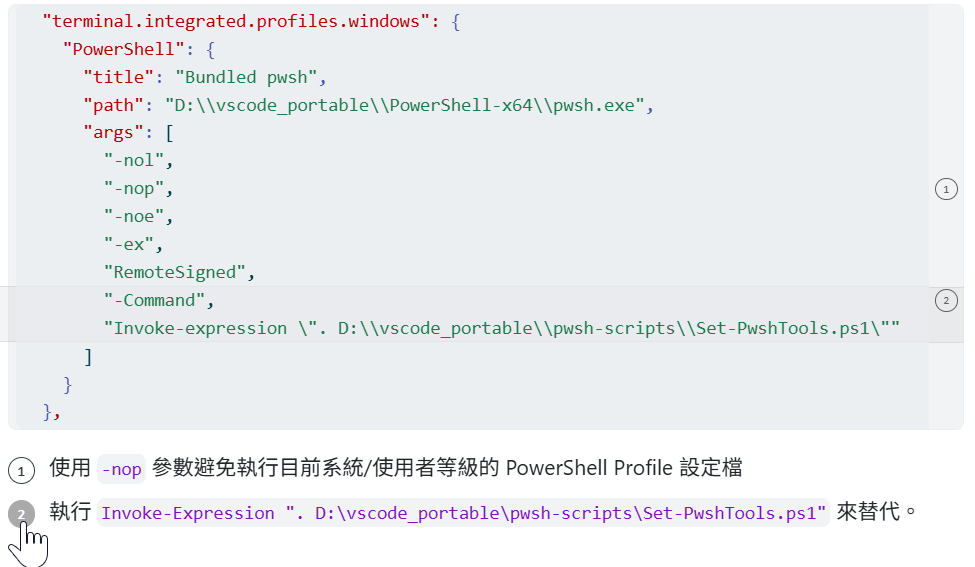
條件式內容 (Conditional Content)
Quarto 支援條件式內容 (Conditional Content),可根據輸出格式、目前使用的 Project Profile 來決定是否顯示指定區塊內容。
藉由此語法可控制在不同輸出格式中顯示不同內容,例如本簡報的Part1原始碼59~71行:
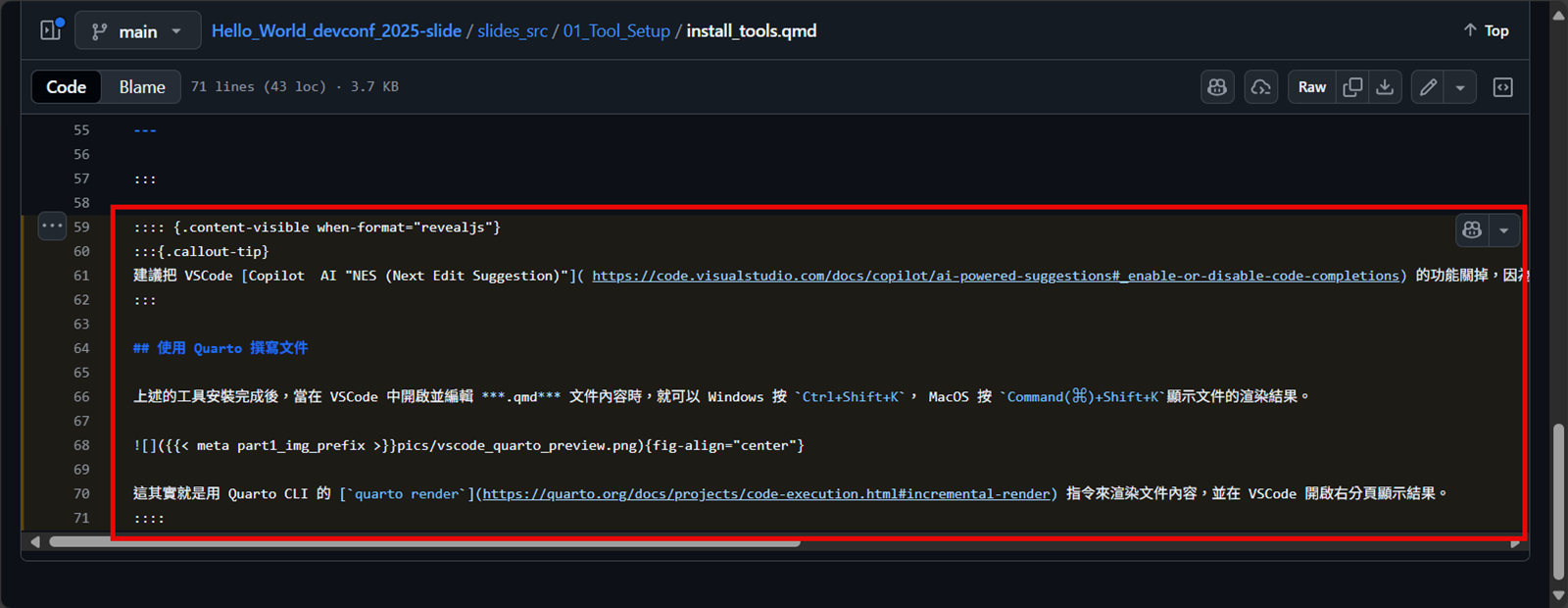
這樣就可以在輸出為整頁 HTML Page 的 Quarto 相關工具安裝文件時藏起後續說明文字,避免離題。
引入其他 .qmd 文件內容 (Including Content)
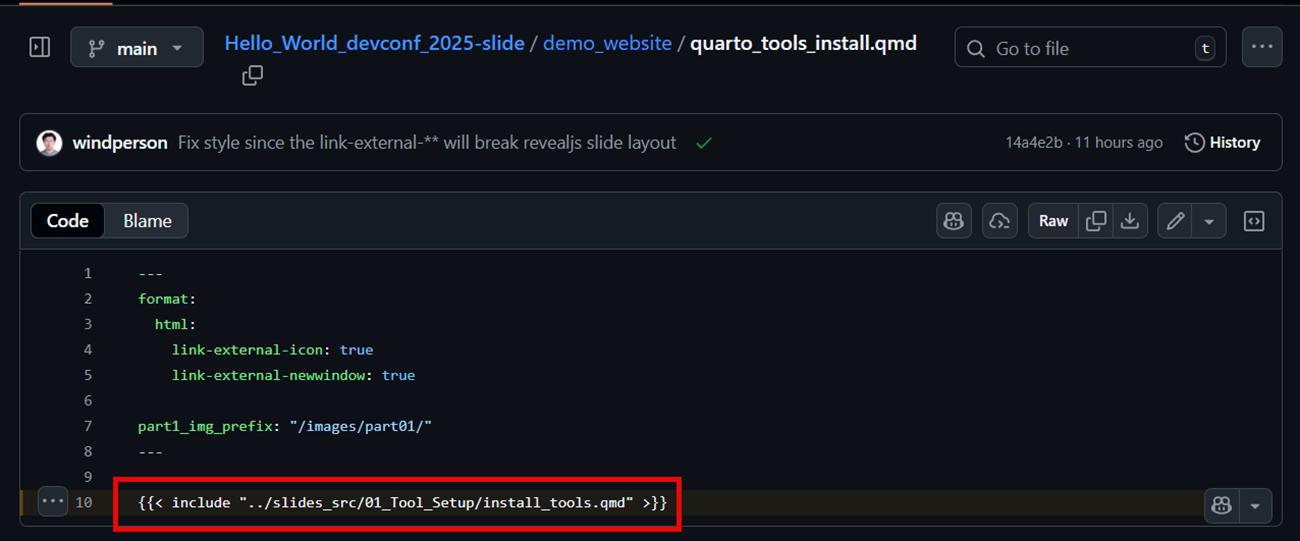
Quarto 支援在 .qmd 文件的內容中引入其他 .qmd 文件內容,達到 *.qmd 檔內容 re-use 的目的。
本簡報的 Quarto 相關工具安裝說明內容就是利用此引入機制在資源網站(demo_website)上重用以 HTML Page 輸出。
Important
此機制需配合 Quarto Project 機制,定義的路徑起點是 Project Root 目錄位置(存 _quarto.yml 檔案的目錄)為準,在 Project Root 目錄以外的非 .qmd 檔案在被 {{< include "..." >}} 的 .qmd 內容中無法正確 reference , Quarto 在 render 時不會去拷貝那些檔案到輸出位置,需自行撰寫 *Project pre-render script 先手動複製到目前 Project Root 目錄內才能運作正常。
Quarto Project
Quarto render 有分為單檔輸出模式以及使用 Quarto Project 專案輸出模式,專案模式的功能較多,可讓多 .qmd 檔共用設定、定義 metadata / var變數、Project Profile、執行 Project scripts 等功能。
專案可用 Quarto CLI 指令 或 VSCode Quarto 擴充套件來建立:
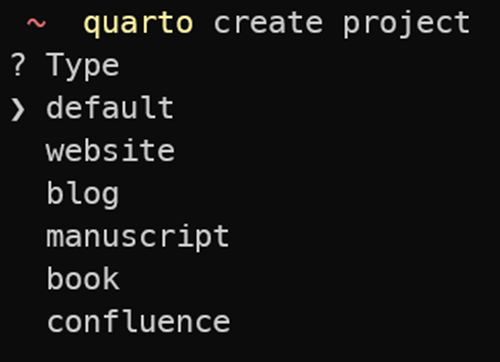
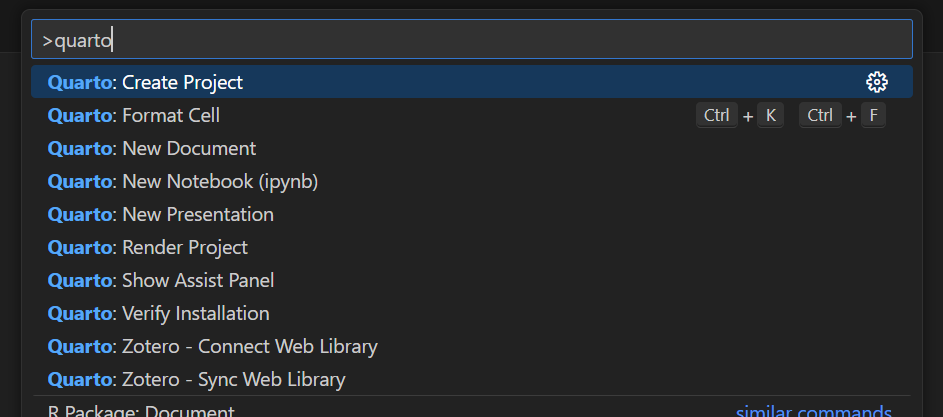
建立專案後,會在該目錄下產生一個 quarto.yml 的設定檔,在此檔案中操作專案全域metadata/變數和設定選項。
匯出多種格式文件
PDF:
- 輸出 PDF 檔案需要 LaTeX 環境(目前預設使用 TinyTex)
- 如果原始 .qmd 檔內容有中/日/韓文(CJK),需要在 metadata 中加入
mainfont設定,指定系統中已安裝的CJK字型,以免PDF內容出現亂碼。
PowerPoint/Word:
輸出 PowerPoint/Word 檔案需先使用 pandoc 子命令產生對應的範本檔案(.docx/.pptx),用 Quarto CLI 指令:
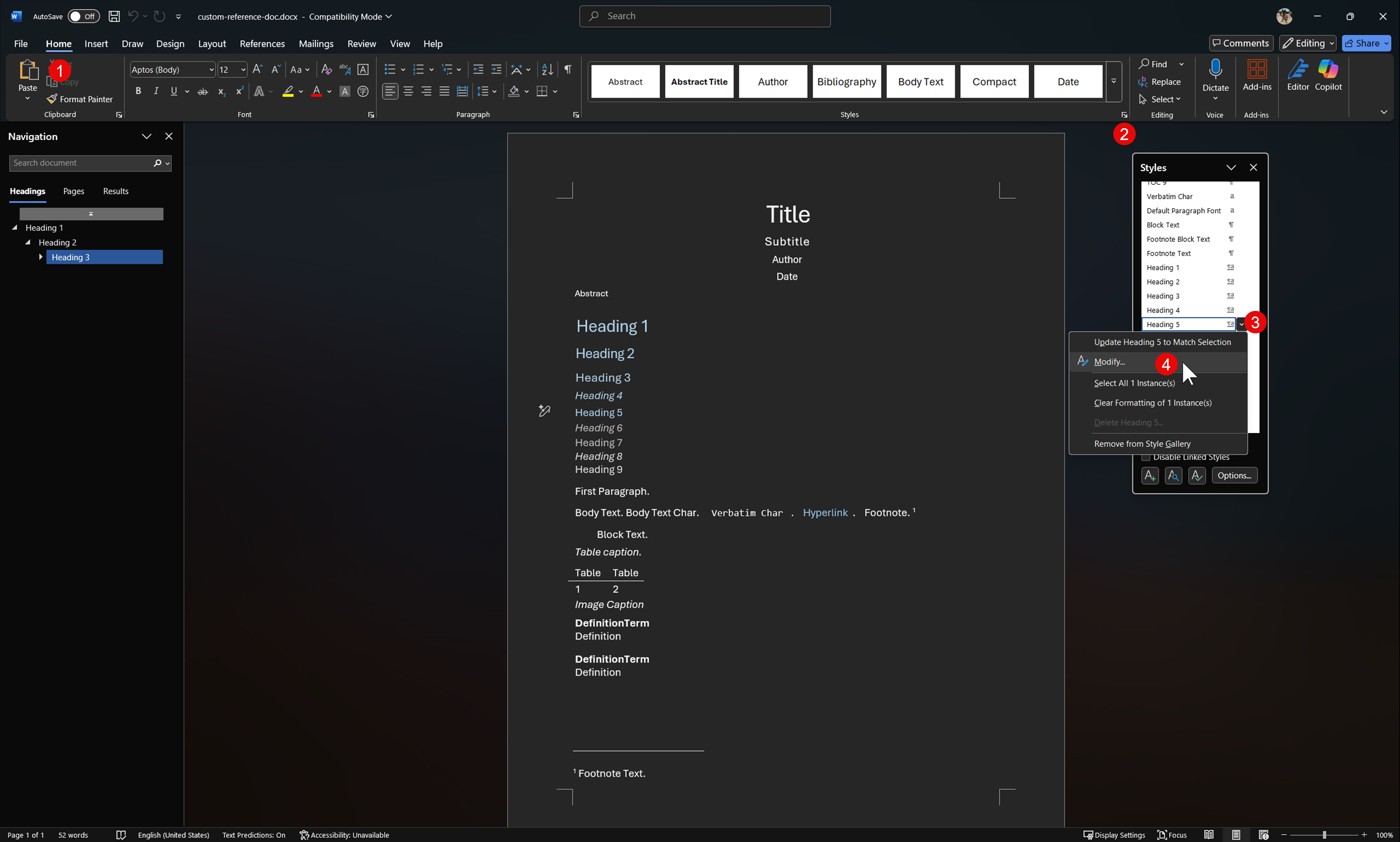
quarto pandoc -o 欲產生範本檔名[.docx|.pptx] --print-default-data-file reference[.docx|pptx]產範本檔,然後就可於 Quarto 專案的_quarto.yml全域設定檔或 .qmd 檔的 YAML Metadata 標頭區域設定reference-doc: 範本檔。Word/PowerPoint範本檔內的 “樣式(Style)” 會對應到 .qmd 檔中指定的
::: {.class_name}格式設定,修改範本檔的 Style 可改變輸出文件的樣式。![]()
Note
Quarto 的 Callout block 沒有對應到 Word(.docx) 的預設範本檔輸出樣式中,但可自行定義 Word Style 樣式來對應產生輸出於 Word 文件檔的內容。
受制於 Pandoc 的 Word/PowerPoint 輸出功能較簡單,無法支援 Quarto 的所有格式設定。
GitHub Action 進階設定
如 .qmd 文件中有使用到 Jupyter Inline Code 程式碼區塊,需額外增加一個安裝 Python 的步驟,然後使用 PIP 安裝 Jupyter 套件:
如有使用到 Quarto project profile / 需指定輸出格式的話,使用
QUARTO_PROFILE環境變數指定 profile 名稱,和with: to:的 YAML 設定來指定輸出格式,例如本簡報自身的 quarto render 設定:那個
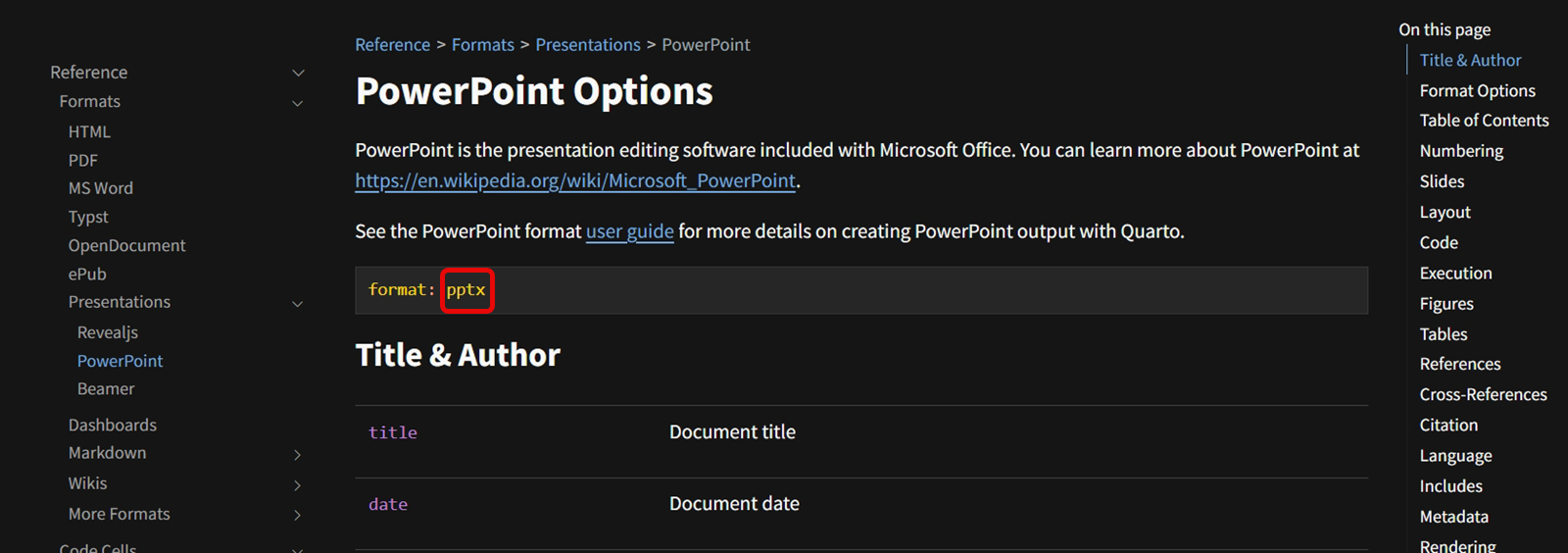
to:的設定值會對應到 Quarto 官方參考文件中輸出格式的名稱,如revealjs、html、pdf、docx、gfm等,以下是輸出 PowerPoint 的參考網頁截圖:![]()
如果有多個專案需要發佈到同一個 GitHub Pages 網站,可先個別 Quarto 專案呼叫 quarto render 的 GitHub Action 完成之後,再使用
run:的 Shell 指令將多個專案的輸出目錄複製到主要專案的輸出目錄,然後再跑 publish action,例如以下範例設定:- name: Copy slides asseets to demo_website run: | mkdir -p demo_website/_site/docs/slides cp -r slides_src/docs/* demo_website/_site/docs/ - name: Publish to GitHub Pages uses: quarto-dev/quarto-actions/publish@v2 with: target: gh-pages path: demo_website render: false env: GITHUB_TOKEN: ${{ secrets.GITHUB_TOKEN }}
What is ragnar?
Ragnar is an open-source (MIT license) R package that provides tools for building Retrieval-Augmented Generation (RAG) systems. RAG systems combine the capabilities of large language models (LLMs) with external knowledge sources to enhance the quality and relevance of generated content.
GitHub Repo: https://github.com/tidyverse/ragnar

Ragnar 官方範例
官方有一個查詢 Quarto 網站文件內容的 RAG 範例網站專案:quartohelp
https://github.com/t-kalinowski/quartohelp
使用 Shiny (web framework) + Ragnar 打造的 Quarto 官方文件查詢網站
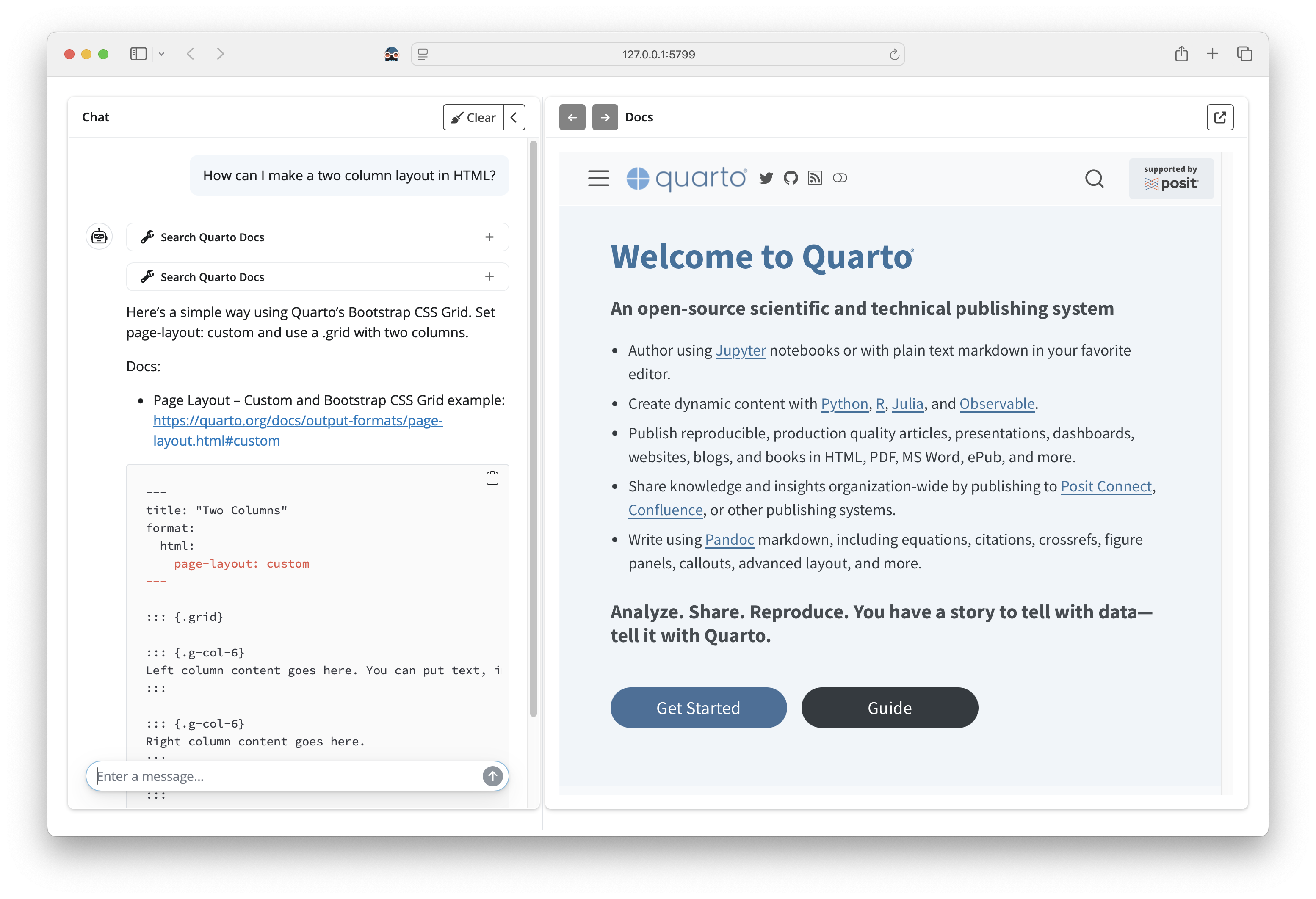
Ragnar 官方範例的簡化版 Demo
由於官方範例專案構造複雜,所以就改寫成只用兩個 R script 檔示範如何使用 ragnar 套件基本 RAG LLM AI 串接。
原始碼在 GitHub:
https://github.com/windperson/Hello_World_devconf_2025-slide/tree/main/RAG_demo
原始碼解說
建立向量資料庫 (scripts/init-quarto-web-rag.R)
抓取 Quarto 官方網站的 GitHub repo 內容,呼叫 quarto render 輸出網站的 HTML 內容,然後呼叫read_as_markdown() (底層使用 微軟的 Python markitdown 套件)將 HTML 轉換為 Markdown 內容,呼叫 markdown_chunk() 將這些 Markdown 內容切片,呼叫 ragnar_store_create() 建立 duckdb 向量資料庫並匯入 (呼叫ragnar_store_insert() )時加入實際網址對應。
串接 LLM 和 RAG Store 產生 ellmer 查詢物件 (scripts/demo-quarto-web-rag.R)
此 R script 檔會使用上一個 R script 建立的向量資料庫(呼叫 ragnar_store_connect()),並且呼叫 ellmer::chat_openai() 串接 OpenAI REST API 相容的 LLM model 來建立一個查詢 Quarto 官方網站內容的 RAG 查詢物件。
然後就可以使用 ellmer 套件提供的 live_console()函式來進行互動式的問答:
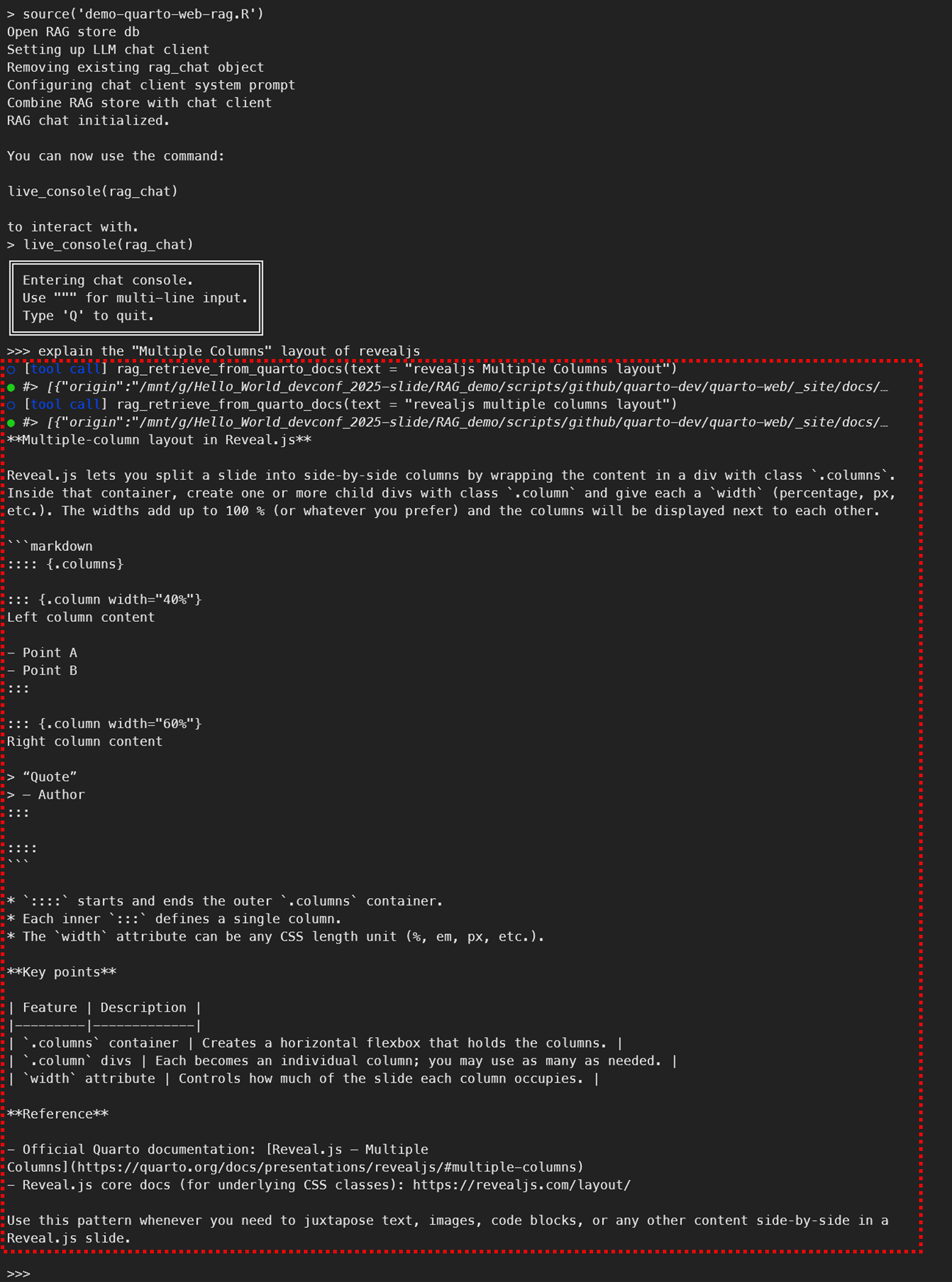
Q & A
Any Questions?
🙋♂️🙋♀️🙋